VS Code
Use Policy
Do not run large processing work on login nodes, this type of work should be run on compute nodes.
Login nodes are intended for moving files around and setting up computational jobs, not for processing large amounts of data. Processes that do a lot of work on login nodes can interfere with other user login sessions and are subject to being killed without notice.
Be aware of VS Code plugins that may attempt to endlessly auto-reconnect to a system. Unusual activity like this can result in your access to the system being blocked until the issue is identified and resolved.
System-Specific Information
Important Configuration Options on Cluster Systems
Please set these configuration options on your local system (not on the NCSA system, but on your own machine where you launch VS Code). This will help VSCode work better for you and not get into a bad state.
"remote.SSH.showLoginTerminal": true,
"remote.SSH.useLocalServer": false
The location options of where these need to go depend on your local machine’s OS. If you’re using VSCode from a Linux machine, those options may go in $HOME/.config/Code/User/settings.json.
Troubleshooting
Cannot Log in with VS Code - Disk Quota Exceeded
When you log in to a system with VS Code, VS Code must be able to write to your home directory (~/) on log in. Therefore, if your home directory is at its quota/limit, you will not be able to log in to the system via VS Code. To resolve this:
Use
sshto log in to the system in a terminal. Go to the system user guide for instructions on how to log in withssh:Run the
quotacommand on the system to see how much above the quota/limit you are in your home directory. Note, you may have reached your “Block Used” and/or “File Used” quota/limit. For a detailed explanation of thequotacommand output, see Quotas.Delete files in your home directory (or move them to the
/projects,/scratch, or/workdirectory, as appropriate) until you are below the quota/limit.After you have returned your home directory below the quota/limit, try to log in to the system using VS Code.
We have also seen cases where it was necessary to remove $HOME/.vscode on the system, similar the VS Code documentation - clean uninstall.
VS Code Performance Issues
Go to Microsoft’s VS Code Performance Issues Guide for steps to try to resolve different performance issues.
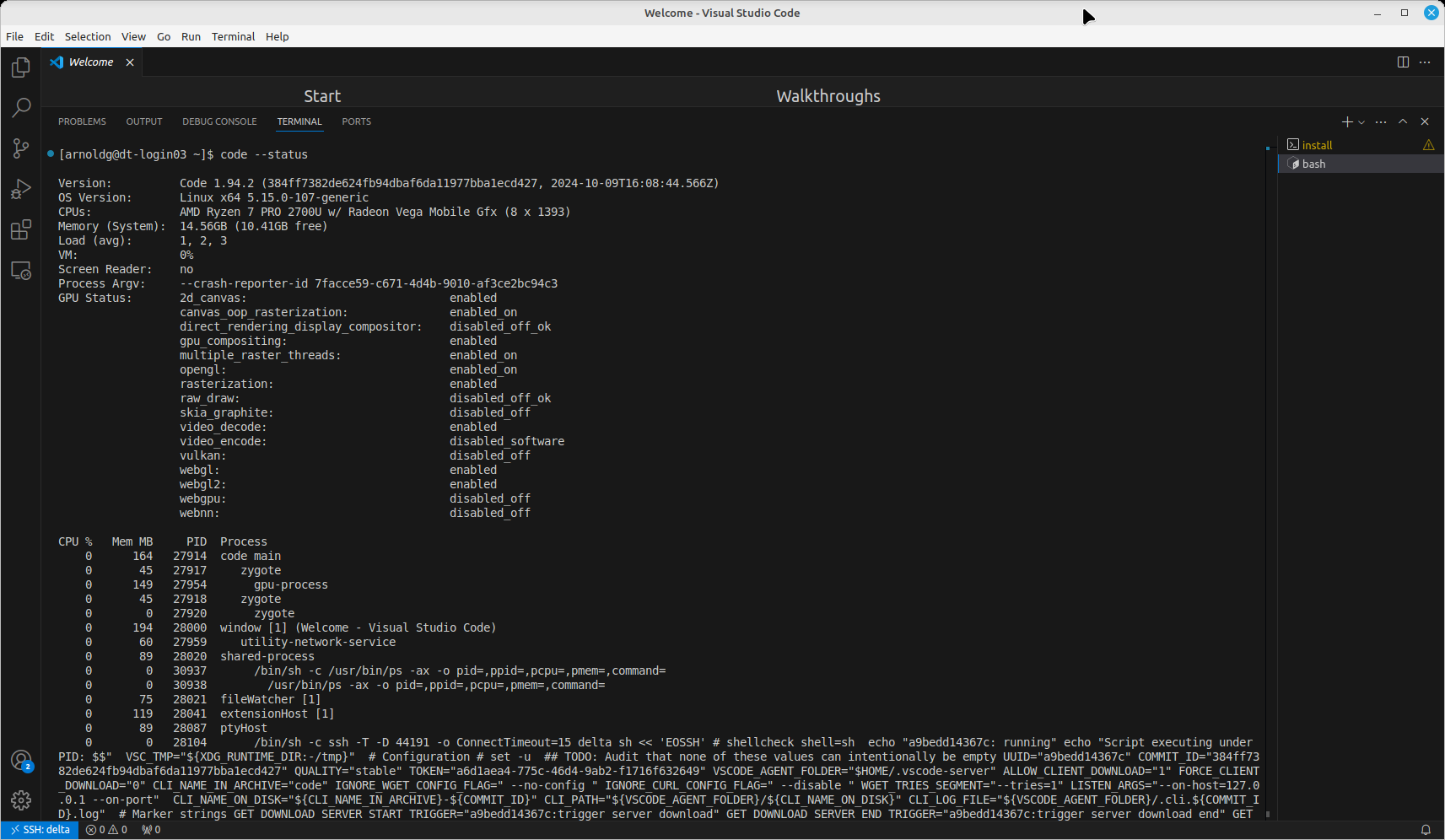
You can run code --status in a VS Code terminal to display status information about your running VS Code and the workspace you have opened.
Stray Process Cleanup
Sometimes you will have problems logging in because VSCode left behind server processes when you last logged out (or you were disconnected). Visual Studio documents here how to kill those remote VSCode processes.