Remote Desktop
The Desktop app in Open OnDemand enables you to access a full-featured remote desktop environment on a RAILS compute node. It provides a Rocky Linux 8.10 system with an XFCE graphical interface, allowing you to interact with GUI-based applications directly from your web browser—just as if you were sitting at a physical workstation. This makes it easy to run and visualize software that requires a graphical desktop on the RAILS platform.
- Preinstalled Software:
QGIS
How to Start an OOD Desktop Session
Navigate to the Open OnDemand dashboard.
Open the Interactive Apps menu at the top of the window and click Desktop.
Fill out the form and then click Launch.
Name of account - This must match one of your available RAILS accounts; these are listed under
Projectwhen you run theaccountscommand on RAILS.Name of reservation - Leave empty if none.
Partition - Select which partition you want to use for the session. (CPU or GPU)
Number of CPUs - Select the number of CPUs you want for the session.
Amount of RAM - Select your RAM following the format example in the form. Note the default RAM assigned if left blank.
Number of GPUs - Select the number of GPUs you want for the session. Note, you must select the GPU partition to use GPUs.
Duration of job - Select your duration following the format example in the form. Note the duration limit for interactive partitions.
Additional Modules - Add any additional lmod modules you need for your session.
Workspace - Sets the default directory to start the interactive app in.
After you click Launch, you will be taken to My Interactive Sessions where you can view the status of your session.
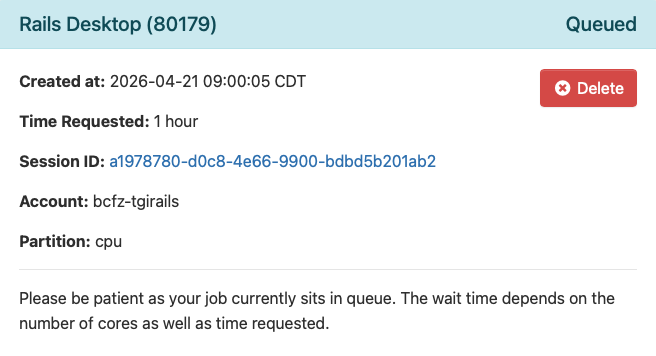
Once your session has started, click Connect to Desktop to launch your Desktop environment. Note, this may take a few minutes.
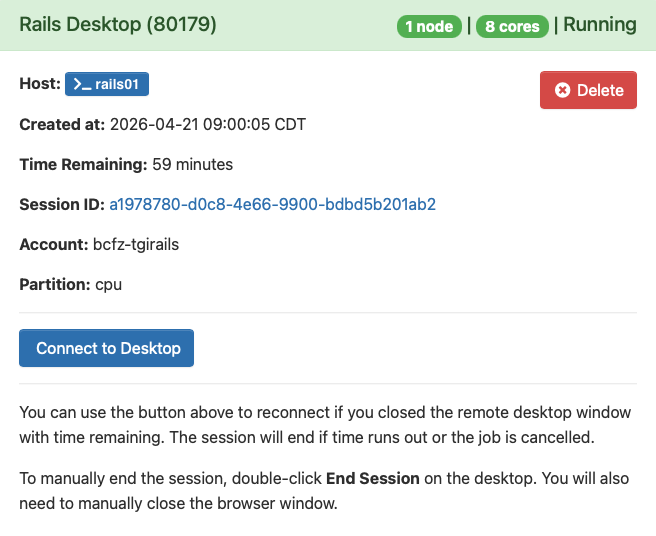
You are now in your Desktop environment on Rails. You can view the time remaining on your interactive sessions by clicking My Interactive Sessions in the Open OnDemand dashboard.

NoVNC Settings
If you experience poor image quality or slow performance in your Desktop session, you can improve it by changing the NoVNC compression and quality settings.
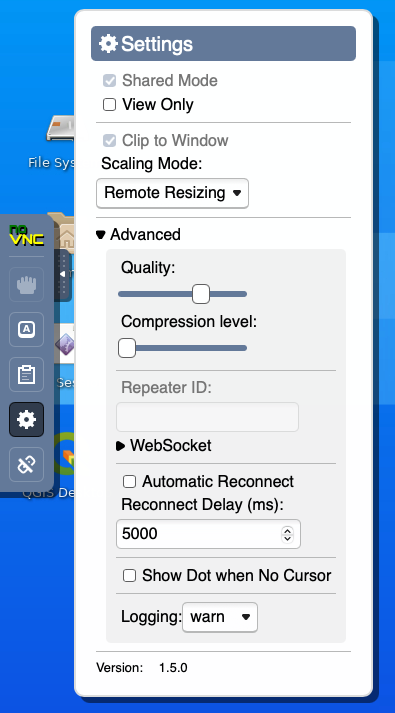
Open the settings menu by clicking the pull-out tab on the left side of your screen.
Expand the advanced section.
Adjust the Compression and Quality sliders to achieve your preferred balance between image quality and responsiveness.
If image quality issues persist, you may also want to modify the display resolution of your desktop session.
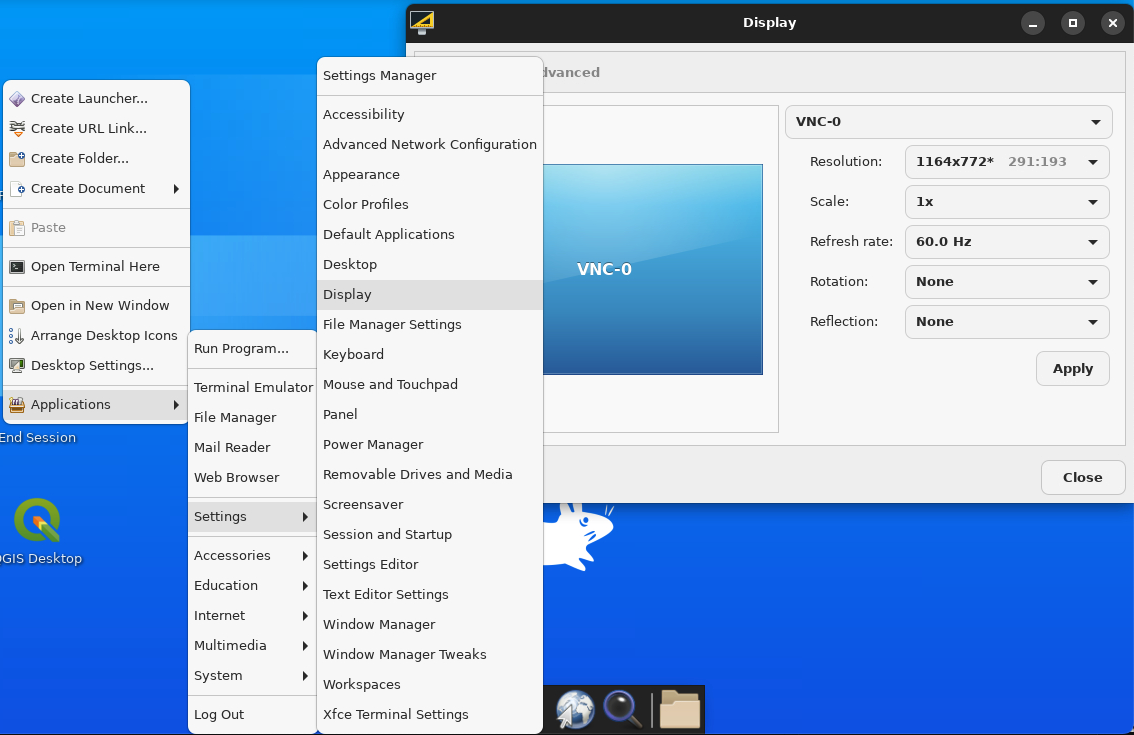
To Adjust the display resolution to best fit your browser tab and local display in the Linux desktop display settings.
Right-click on the desktop background and select Applications, then Settings, then Display.
Adjust the Resolution settings to your desired level.
Click Apply.